[](https://github.com/ellerbrock/open-source-badges/)
[ ](https://join.slack.com/t/firstcontributors/shared_invite/zt-1hg51qkgm-Xc7HxhsiPYNN3ofX2_I8FA)
[](https://opensource.org/licenses/MIT)
[](https://www.codetriage.com/roshanjossey/first-contributions)
# First Contributions
|
](https://join.slack.com/t/firstcontributors/shared_invite/zt-1hg51qkgm-Xc7HxhsiPYNN3ofX2_I8FA)
[](https://opensource.org/licenses/MIT)
[](https://www.codetriage.com/roshanjossey/first-contributions)
# First Contributions
|  | Git Bash Edition |
| ---------------------------------------------------------------------------------------------------------------------- | ---------------- |
It's hard. It's always hard the first time you do something. Especially when you are collaborating, making mistakes isn't a comfortable thing. But open source is all about collaboration & working together. We wanted to simplify the way new open-source contributors learn & contribute for the first time.
Reading articles & watching tutorials can help, but what comes better than actually doing the stuff without messing up anything. This project aims at providing guidance & simplifying the way rookies make their first contribution. Remember the more relaxed you are the better you learn. If you are looking for making your first contribution just follow the simple steps below. We promise you, it will be fun.
If you don't have Git Bash on your windows machine, [install it](https://git-scm.com/download/win).
| Git Bash Edition |
| ---------------------------------------------------------------------------------------------------------------------- | ---------------- |
It's hard. It's always hard the first time you do something. Especially when you are collaborating, making mistakes isn't a comfortable thing. But open source is all about collaboration & working together. We wanted to simplify the way new open-source contributors learn & contribute for the first time.
Reading articles & watching tutorials can help, but what comes better than actually doing the stuff without messing up anything. This project aims at providing guidance & simplifying the way rookies make their first contribution. Remember the more relaxed you are the better you learn. If you are looking for making your first contribution just follow the simple steps below. We promise you, it will be fun.
If you don't have Git Bash on your windows machine, [install it](https://git-scm.com/download/win).
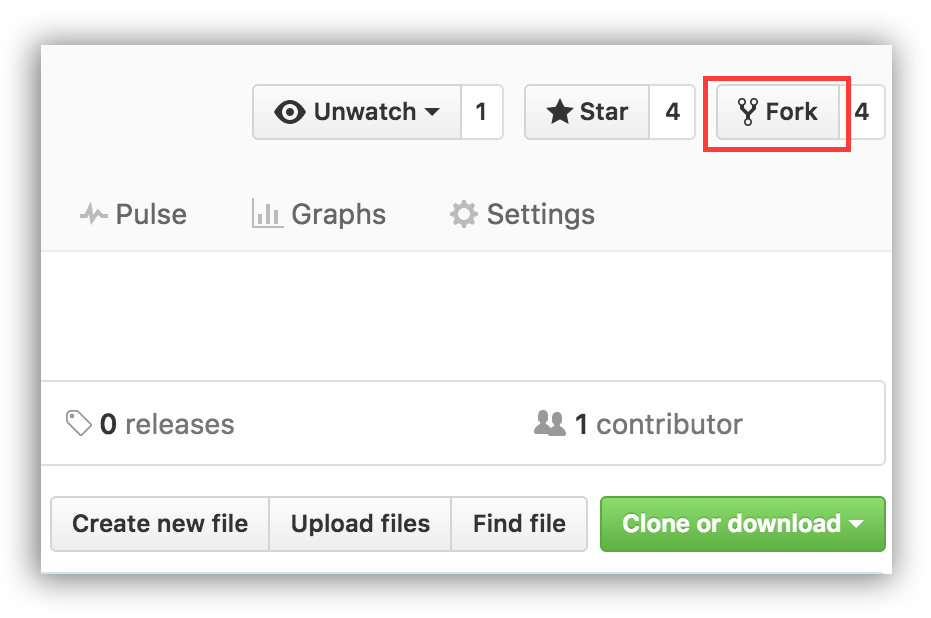 ## Fork this repository
Fork this repo by clicking on the fork button on the top right of this page.
This will create a copy of this repository in your account.
## Clone the repository
Now clone this repo to your machine.
IMPORTANT: DO NOT CLONE THE ORIGINAL REPO. Go to your fork and clone it.
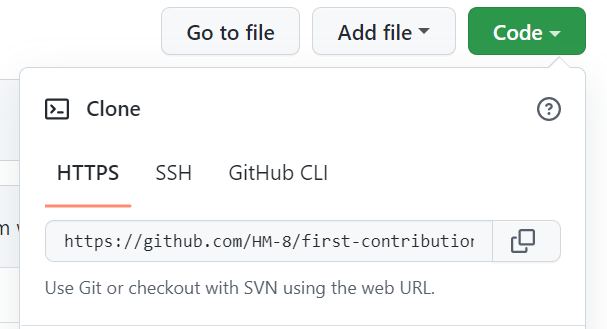
To clone the repo, click on "Code" and then copy the string down below.
`
## Fork this repository
Fork this repo by clicking on the fork button on the top right of this page.
This will create a copy of this repository in your account.
## Clone the repository
Now clone this repo to your machine.
IMPORTANT: DO NOT CLONE THE ORIGINAL REPO. Go to your fork and clone it.
To clone the repo, click on "Code" and then copy the string down below.
` `
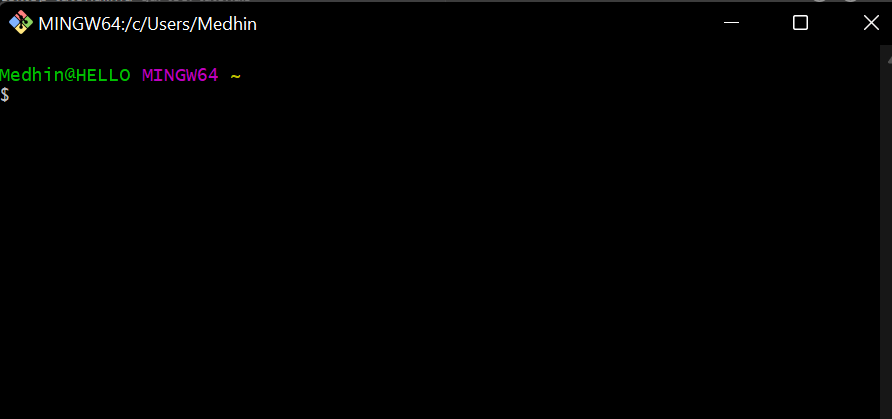
Open the git bash application you just downloaded. It should look like the image down below if its on a windows machine.
`
`
Open the git bash application you just downloaded. It should look like the image down below if its on a windows machine.
` `
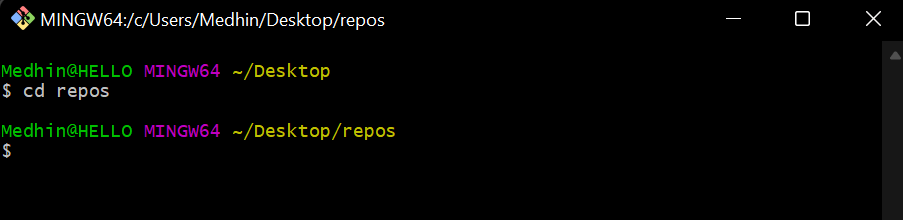
Go to the folder that you want to save this project on by uisng this command
`cd `
`
`
Go to the folder that you want to save this project on by uisng this command
`cd `
` `
Use the string you copied in the step above to clone the repository using this command
`git clone `
`
`
Use the string you copied in the step above to clone the repository using this command
`git clone `
`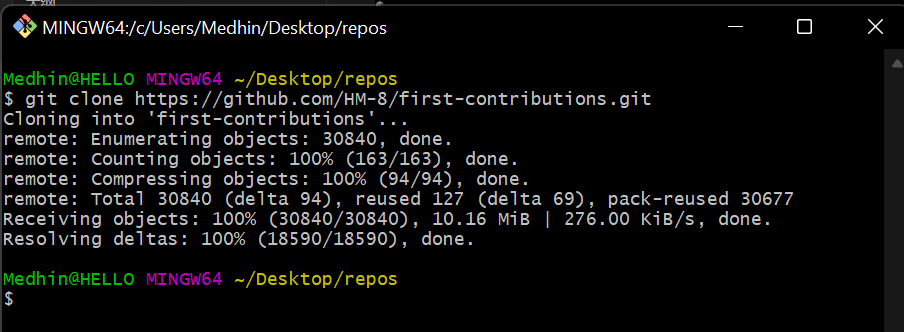 `
Go to the directory where the repo is and open it up on vs code to make your changes.
`
`
Go to the directory where the repo is and open it up on vs code to make your changes.
`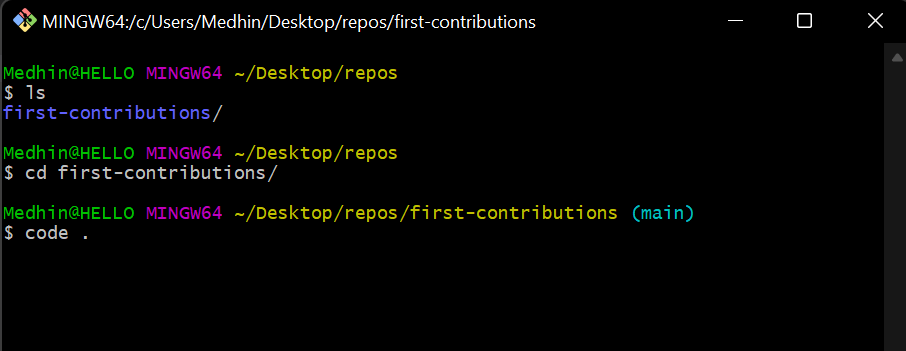 `
## Create a branch
Now create a branch by uing this simple command. This command not only creates a branch for you but also lets you switch to that branch.
```
git checkout -b
```
Name your branch ``. For example, "add-james-smith"
`
`
## Create a branch
Now create a branch by uing this simple command. This command not only creates a branch for you but also lets you switch to that branch.
```
git checkout -b
```
Name your branch ``. For example, "add-james-smith"
`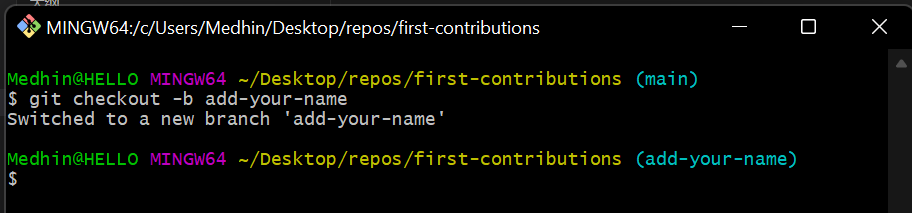 `
## Make necessary changes and commit those changes
Now open `Contributors.md` file in a text editor, scroll to the bottom of the page and add your name to it, then save the file.
Example: If your name is James Smith, It should look like this.
\[James Smith](https://github.com/jamessmith)
You can see that there are changes to Contributors.md by simply running this command
`git status`
`
`
## Make necessary changes and commit those changes
Now open `Contributors.md` file in a text editor, scroll to the bottom of the page and add your name to it, then save the file.
Example: If your name is James Smith, It should look like this.
\[James Smith](https://github.com/jamessmith)
You can see that there are changes to Contributors.md by simply running this command
`git status`
`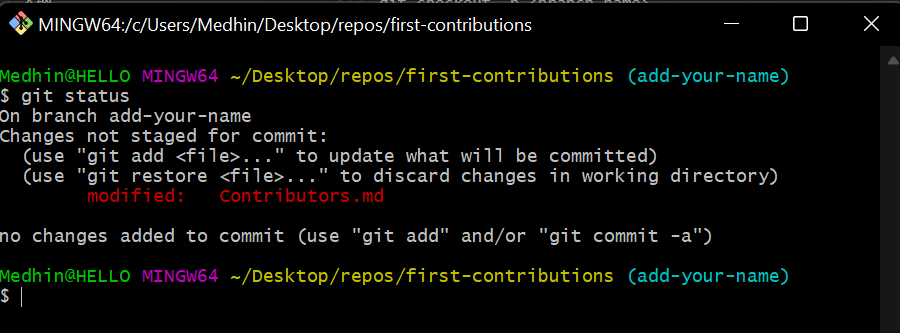 `
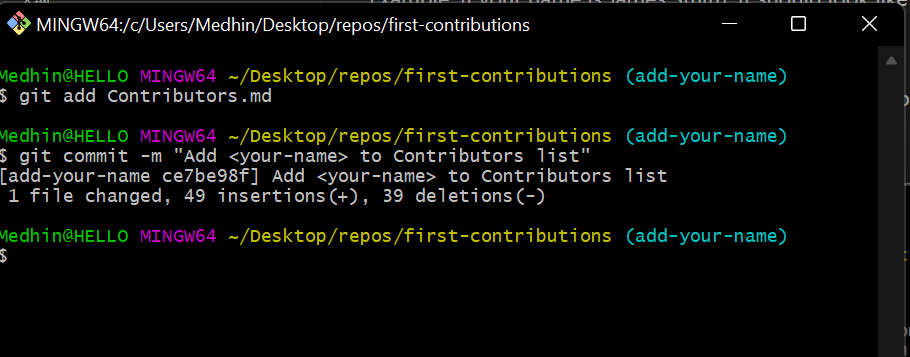
Now commit those changes:
First add the change you made to the staging area by using
`git add file-name`
Then write a commit message by sing this command
`git commit -m "Add your-name to Contributors list"`
Replace `` with your name.
`
`
Now commit those changes:
First add the change you made to the staging area by using
`git add file-name`
Then write a commit message by sing this command
`git commit -m "Add your-name to Contributors list"`
Replace `` with your name.
` `
To see if your commit has been made you can run a simple `git log --oneline` command.
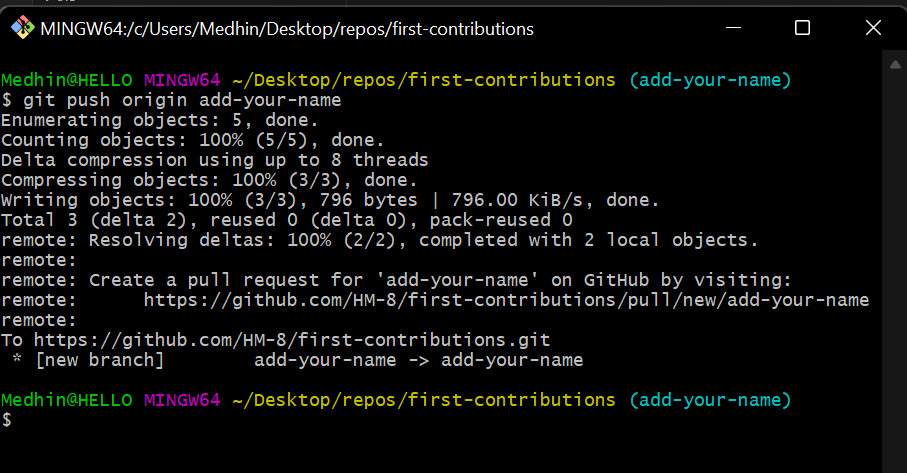
## Push changes to github
Once you are done with the above steps you can push your changes by using this command
`git push origin `
`
`
To see if your commit has been made you can run a simple `git log --oneline` command.
## Push changes to github
Once you are done with the above steps you can push your changes by using this command
`git push origin `
` `
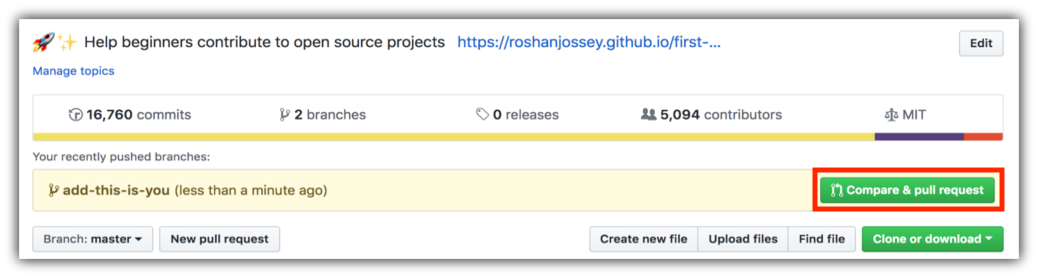
## Submit your changes for review
If you go to your repository on github, you'll see `Compare & pull request` button. click on that button.
`
## Submit your changes for review
If you go to your repository on github, you'll see `Compare & pull request` button. click on that button.
 Now submit the pull request.
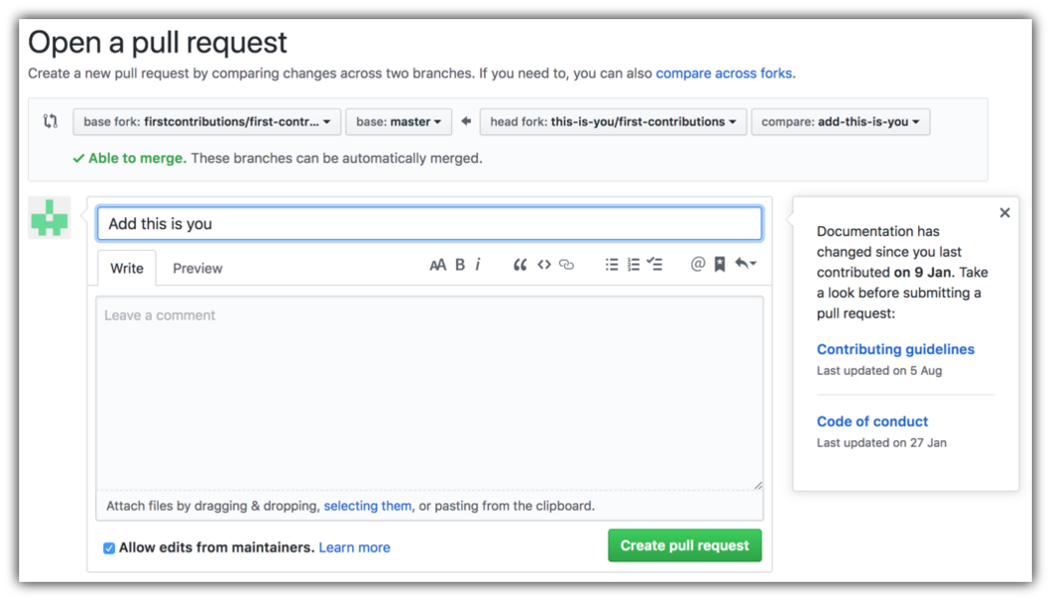 Soon I'll be merging all your changes into the master branch of this project. You will get a notification email once the changes have been merged.
## Where to go from here?
Congrats! You just completed the standard _fork -> clone -> edit -> PR_ workflow that you'll encounter often as a contributor!
Celebrate your contribution and share it with your friends and followers by going to [web app](https://firstcontributions.github.io#social-share).
You can join our slack team in case you need any help or have any questions. [Join slack team](https://join.slack.com/t/firstcontributors/shared_invite/zt-1hg51qkgm-Xc7HxhsiPYNN3ofX2_I8FA).
### [Additional material](../additional-material/git_workflow_scenarios/additional-material.md)
## Tutorials Using Other Tools
[Back to main page](https://github.com/firstcontributions/first-contributions#tutorials-using-other-tools)
Soon I'll be merging all your changes into the master branch of this project. You will get a notification email once the changes have been merged.
## Where to go from here?
Congrats! You just completed the standard _fork -> clone -> edit -> PR_ workflow that you'll encounter often as a contributor!
Celebrate your contribution and share it with your friends and followers by going to [web app](https://firstcontributions.github.io#social-share).
You can join our slack team in case you need any help or have any questions. [Join slack team](https://join.slack.com/t/firstcontributors/shared_invite/zt-1hg51qkgm-Xc7HxhsiPYNN3ofX2_I8FA).
### [Additional material](../additional-material/git_workflow_scenarios/additional-material.md)
## Tutorials Using Other Tools
[Back to main page](https://github.com/firstcontributions/first-contributions#tutorials-using-other-tools)